
Transferring Tickets
Overview
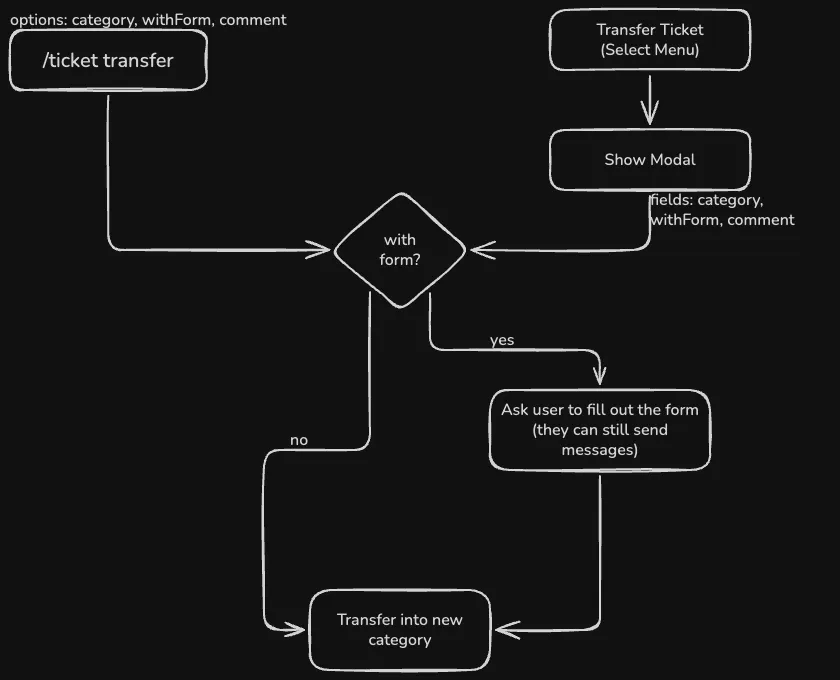
Section titled “Overview”Transferring tickets between categories in Ticketon is a straightforward process that can be accomplished using either the
ticket controls or the /transfer ticket command. This guide will walk you through the steps to transfer tickets effectively.
The process if pretty much the same in both cases, with some differences noted below.
Using Ticket Controls
Section titled “Using Ticket Controls”- In the ticket you want to transfer, go all the way up to the ticket controls at the top of the channel.
- From the select menu, choose Transfer Ticket. A modal (form) will appear.
- In the modal, select the new category you want to transfer the ticket to, as well as a comment (optional) and the With Form option. Click Submit to finish
- If you selected the With Form option and the new category has a form, the bot will send a message to the ticket channel with a button that the user can click to fill out the form. If you did not select this option, the ticket will be transferred immediately.
Using the /transfer ticket Command
Section titled “Using the /transfer ticket Command”- In the ticket you want to transfer, use the
/transfer ticketcommand. Use the command’s options to specify the new category, a comment (optional) and whether you want to use the With Form option. - If you selected the With Form option and the new category has a form, the bot will send a message to the ticket channel with a button that the user can click to fill out the form. If you did not select this option, the ticket will be transferred immediately.
Additional Information
Section titled “Additional Information”- By default, the user will not be asked to fill out the form (when there is one). You need to explicitly select the With Form option in order to have the user fill out the form before transferring.
- If the ticket author is asked to fill out the form, they are not forced to do so. They can choose to ignore it and the ticket will remain in the original category. Maybe an option for this will be added in the future.
- A new starter message will be sent in the ticket channel once the ticket is transferred, just like when a new ticket is created - however, only under a condition:
- If the the ticket author fills out the form, the starter message will be sent after the form is submitted.
- If either the old or new category has a custom starter message set, otherwise, no new starter message will be sent. This might seem oddly specific, but the idea is that if both categories use the default starter message, there is no need to resend it. Otherwise it would look like a bit weird.
- New ticket controls will not be sent in the ticket channel when the ticket is transferred, as the existing controls will continue to work.
Filling out the form for the new category
Section titled “Filling out the form for the new category”When the ticket author clicks the button to fill out the form for the new category, they will be presented with the form like when they would when creating a new ticket. Once they submit the form, the ticket will be transferred to the new category.
The message asking the user to fill out the form will be edited to a “Ticket transferred” message once the form is submitted and the starter message of the new category will be sent in the ticket channel.