
Custom Messages
Messages are a core part of how Ticketon interacts with your server. You can customize the content and layout of most messages sent by Ticketon to better fit your server’s style and needs.
What are Custom Messages for?
Section titled “What are Custom Messages for?”Custom messages can be used to:
- Ticket Starter Message: The message sent in a ticket, when a user creates a ticket.
- Panel Message: A message for instructions and button(s)/select menu(s) to create tickets.
- Snippets: Reusable message templates for common responses or information.
Editing Messages
Section titled “Editing Messages”You can edit custom messages in the Dashboard. Select the server you want to manage, then navigate to the “Messages” tab.
Message Sharing
Section titled “Message Sharing”You can share your custom messages with others and import shared messages from the community to save time and inspire your setups.
Sharing Messages
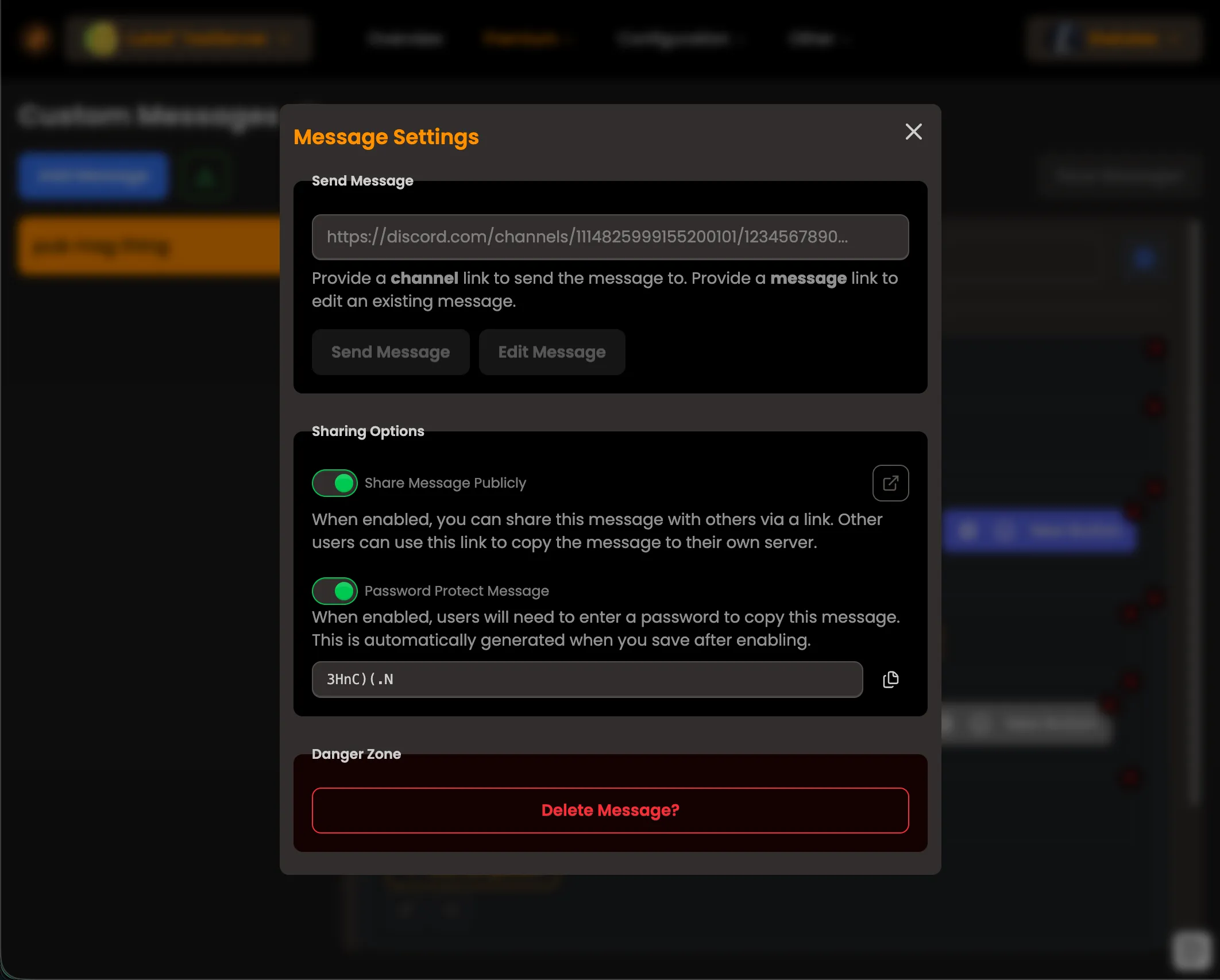
Section titled “Sharing Messages”In the message editor, click the blue settings button next to the message name to open the settings modal. Toggle sharing on or off, and optionally enable password protection (a password will be generated automatically). When enabled, a unique URL is created for sharing.
Importing Shared Messages
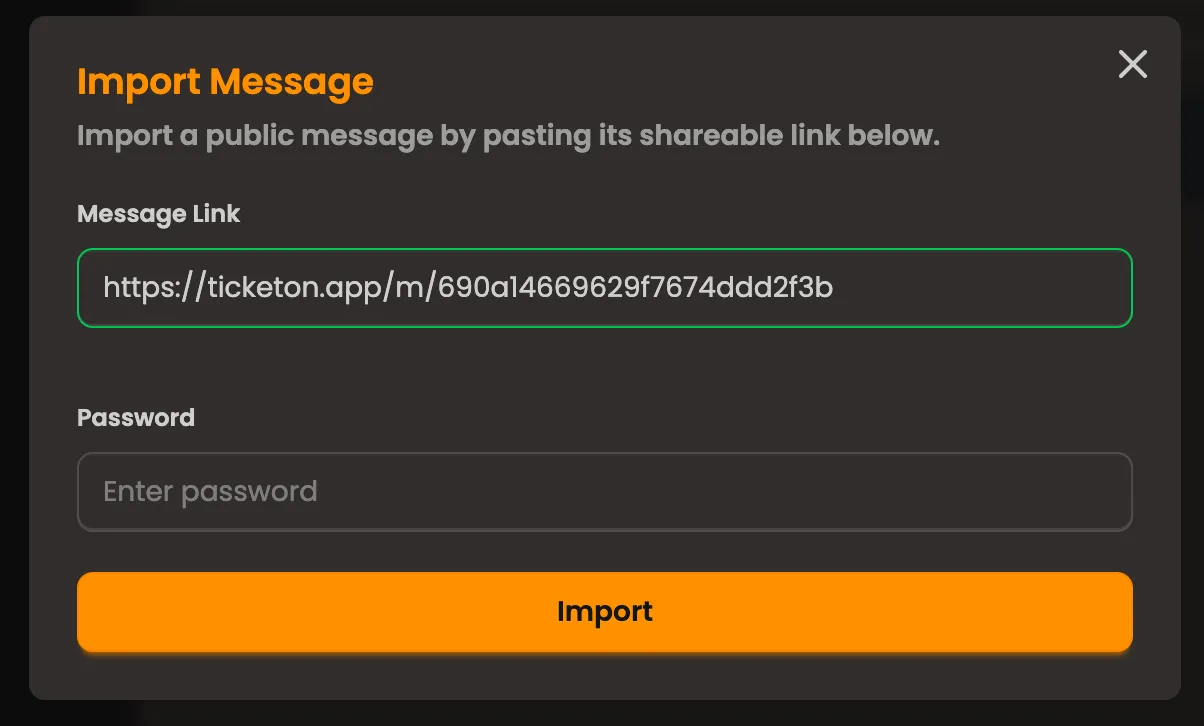
Section titled “Importing Shared Messages”On the Custom Messages page, click the green download button next to “Create New Message” to open the import modal. Paste the shared URL and enter the password if required.
Importing Discord Messages
Section titled “Importing Discord Messages”To import messages directly from Discord in the dashboard, go to to the Messages page, and click the Import Button and change the tab in the dialog to Discord Message.
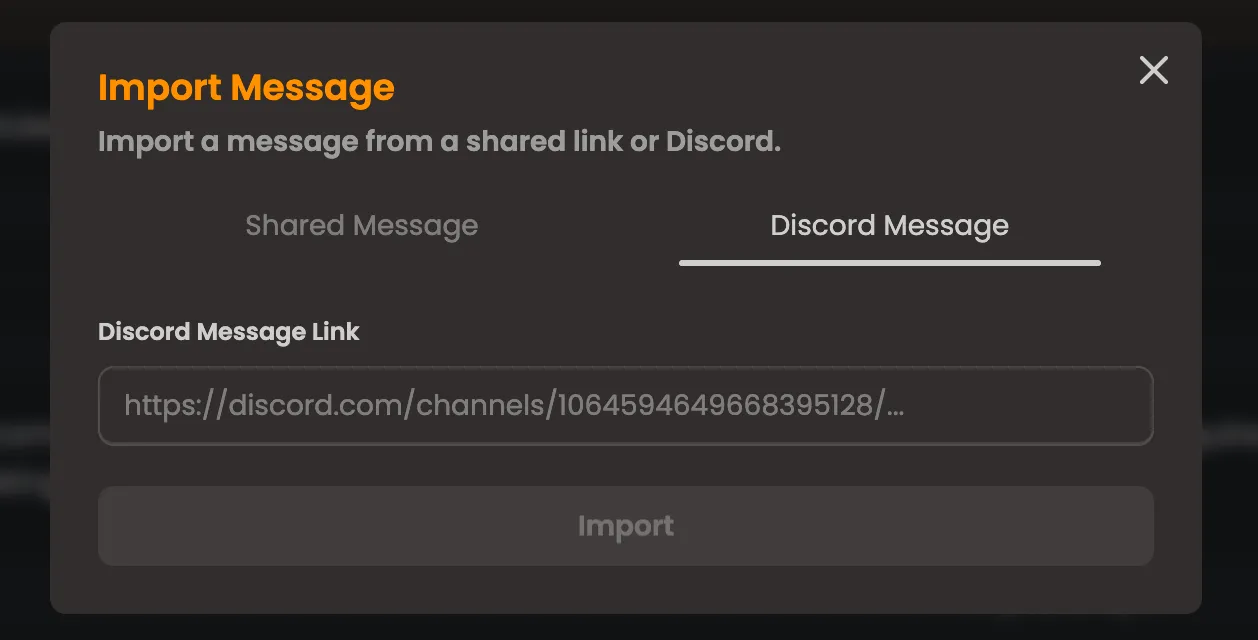
This should allow quicker setting up of your server with existing messages from a previous bot or configuration, however do note that embeds are not supported as the structure is fundamentally different between Components V2 and (old) Embeds.
Message Preview
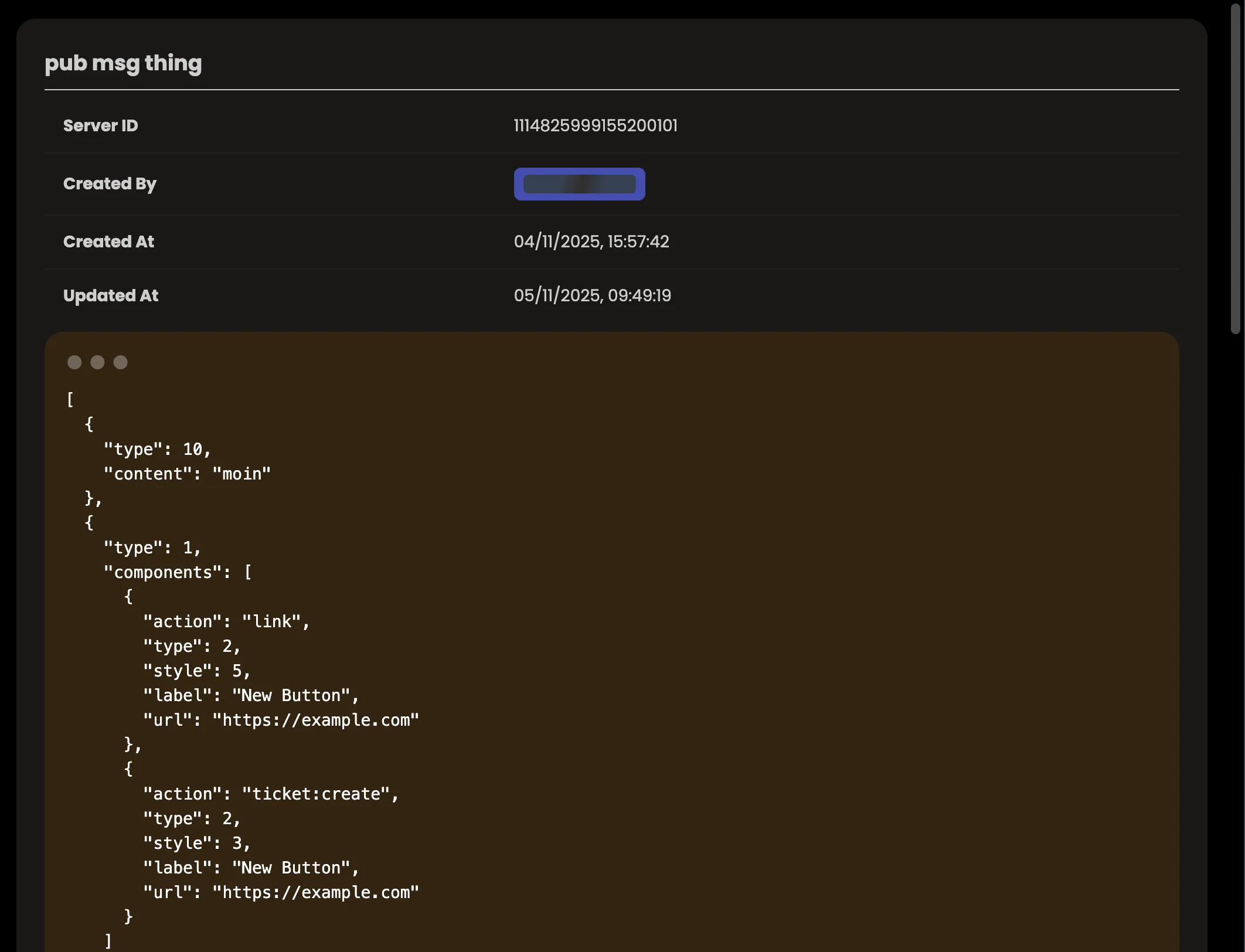
Section titled “Message Preview”Shared messages can be previewed in read-only mode via the generated URL. Note that the preview does not render the full Discord layout.
Anatomy of a Message
Section titled “Anatomy of a Message”A message is made up of a unique name (per server) and up to 40 components (Discord limit).
Ticketon exclusively uses Components V2 for its messages.
Components V2
Discord’s Message Components V2 allow you to build rich, interactive messages with complex layouts. It can be quite difficult to understand at first, so remember:
Variables
Section titled “Variables”Variables are special placeholders that get replaced with dynamic content when the message is sent. However, they are different for each context.
Some variables are given every time.
Variables are wrapped in curly braces { }.
Example: {username}
Common Variables
Section titled “Common Variables”| Variable | Description |
|---|---|
{usermention} | Mentions the user who triggered the message or created the ticket. |
{username} | The username of the user who triggered the message. |
{userid} | The ID of the user who triggered the message or created the ticket. |
{servername} | The name of the server. |
{serverid} | The ID of the server. |
{servericonurl} | The icon URL of the server. Can be empty if the server has no icon. |
Variables for Messages in Tickets
Section titled “Variables for Messages in Tickets”These variables are only available in messages that are sent in the context of a ticket. This includes the Ticket Starter Message and Custom Messages sent in tickets.
| Variable | Description |
|---|---|
{ticketid} | The ID of the ticket. |
{ticketindex} | The index of the ticket. |
{categoryname} | The name of the category the ticket belongs to. |
{usermention} | Mentions the user who created the ticket. |
{username} | The username of the user who created the ticket. |
{userid} | The ID of the user who created the ticket. |
Starter Message Variables
Section titled “Starter Message Variables”If a ticket was created using a form, you can use the Custom IDs of the form fields as variables. However, you need to wrap them in curly braces.
Example: textinput-1 {textinput-1}
Allowed Mentions Settings
Section titled “Allowed Mentions Settings”You can configure how Ticketon handles mentions in its messages to prevent unwanted pings. In the message editor, click the blue settings button next to the message name to open the settings modal.
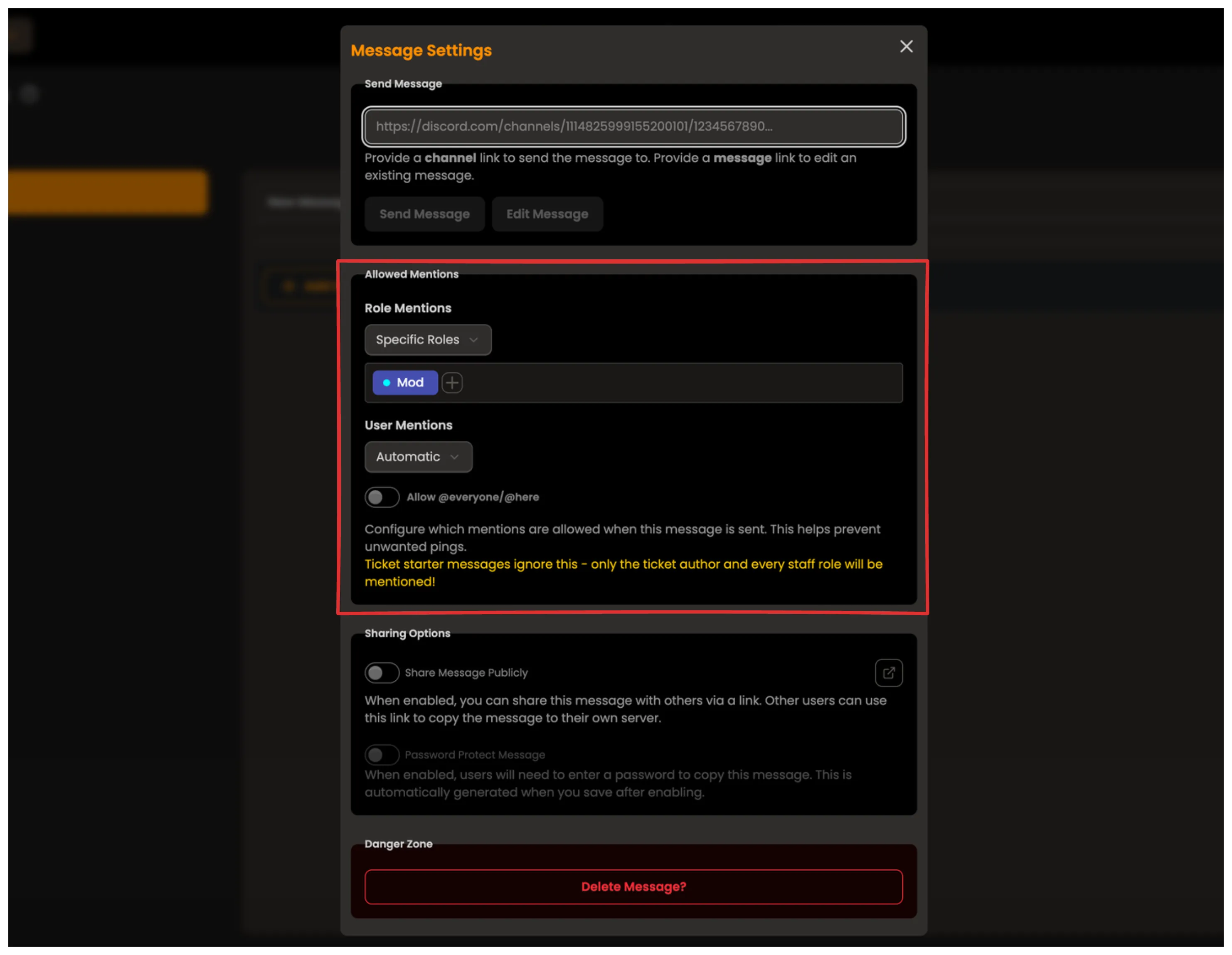
It is overall pretty intuitive, but here is a quick overview of the options:
- Parse Everyone & Here: If enabled,
@everyoneand@herementions in the message will ping the respective groups in the channel. - Roles
- All Mentioned Roles: If selected, all roles mentioned in the message will ping their members.
- No Roles: If selected, no roles mentioned in the message will ping their members.
- Specific Roles: If selected, only the roles you specify will ping their members when mentioned in the message.
- Users
- All Mentioned Users: If selected, all users mentioned in the message will be pinged.
- No Users: If selected, no users mentioned in the message will be pinged.
- Specific Users: If selected, only the users which ids you add will be pinged when mentioned in the message.